Jira milestones and markers: how to show dates that aren't work

Every project has moments that matter but are not a deadline in essence. One can call them checkpoints: for example, the date when the design is finally signed off, the beta is shipped to real users, the compliance audit, etc.
It’s important to represent these checkpoints in Jira because they are essential for project success. There’s only one trick: Jira does not have an object for this, so many teams have to improvise.
In this article, we’ll walk through such improvisations in regard to milestones and markers, some of which may be way more effective than others.
TL;DR
- Jira milestones mark significant project points such as approvals, releases, handoffs, or launches.
- Not every important date is a milestone. Use milestones for project achievements and markers for external events, deadlines, and other dates that aren't work.
- Unfortunately, there's no native milestone tab in Jira on any tier.
What are Jira milestones?
A Jira milestone is a significant point in a project that marks an important achievement, decision, handoff, or deadline. Unlike a regular Jira task, a milestone represents something that needs to be true by a particular point in time, rather than a piece of work that takes several days to complete.
PMI defines a milestone as a “significant point or event” in a project. It also describes milestones as having zero duration and no resources assigned.
A marker is how a tool (Jira, in this case) is supposed to draw one. A vertical line, a flag, a diamond — anything that pins a date to a timeline so the work around it can be read against it. Releases get markers, sprint boundaries get markers, today's date usually gets one, too.
Jira milestones help teams:
- Long epics get checkpoints. Three months with one finish line becomes something you can hit every few weeks.
- Key dates leave the slide deck. Board reviews, trade shows, and customer sign-offs live next to the work instead of in someone's calendar.
- Stakeholders read a date instantly. A marker on a timeline needs a lot less explaining than an entire backlog.
- Slippage shows up early. A task bar crossing the gate date is visible months ahead.
- Decisions get an owner and a date. Go/no-go, budget approval, and design freeze stop being informal.
- Phases get a real boundary. "Build starts when design is approved" means nothing until approval is a dated thing you can point at.
How to create milestones in Jira
Jira was built around work items: things with an assignee, a status, and a workflow. A milestone is none of that. It's a date with meaning and nobody doing it, which is a shape Jira has no slot for.
That’s why almost all methods to create milestones that are listed below basically borrow an object built for something else and bend it into a marker. Importantly, none of this is a Premium feature. Versions, custom work types, and epic due dates all work on Free. Premium adds Plans, which show versions as markers across several projects, and that's the whole difference.
With that said, there's no dedicated milestone object on any tier. Fortunately, there are several ways out of this: four are fixes, and one actual painkiller.
Option 1: A version (fix version)
Any plan. Needs project admin rights; team-managed projects need releases enabled first.
The closest thing Jira has to a marker — a date, a progress count, and it renders on the timeline.
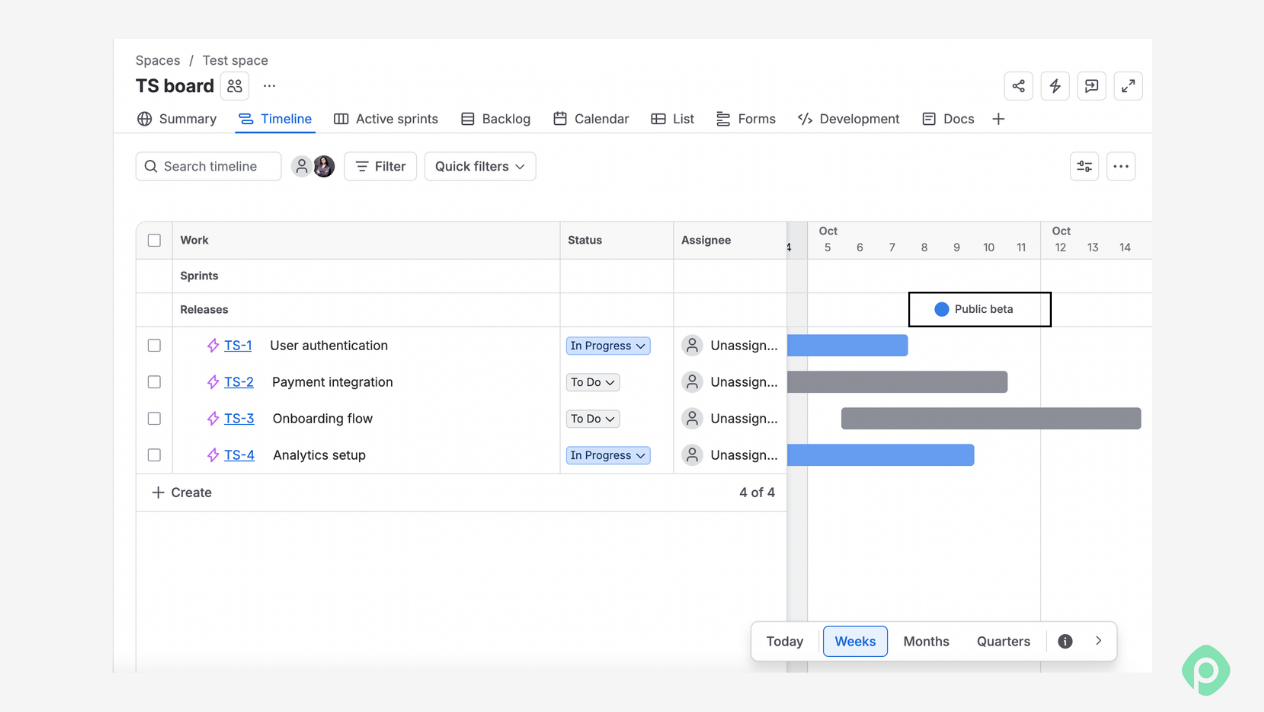
How to create it:
- Space settings → Versions → Create release.
- Name it after the milestone (Public beta, Design freeze) and set the release date.
- Tag the work due by then with that fix version.
- Make sure releases are showing on the timeline. In the current Jira timeline, they appear as their own row; if you don't see it, check the view settings icon above the chart.
Weak point: versions live in one project, so a date shared by three teams means three identical versions. Premium softens this — a plan shows versions from all its source projects, and you can group them into a cross-project release, though that grouping exists only inside the plan.
You can also sync creation with a global automation rule, but there's no "edit version" action, so renames and date changes still have to be done by hand in every project. CSV import won't create versions either.
Option 2: A custom Milestone work type
Any plan, but a Jira admin has to create it. Straightforward in company-managed projects.
A good workaround for dates that need fields, links, and reporting.
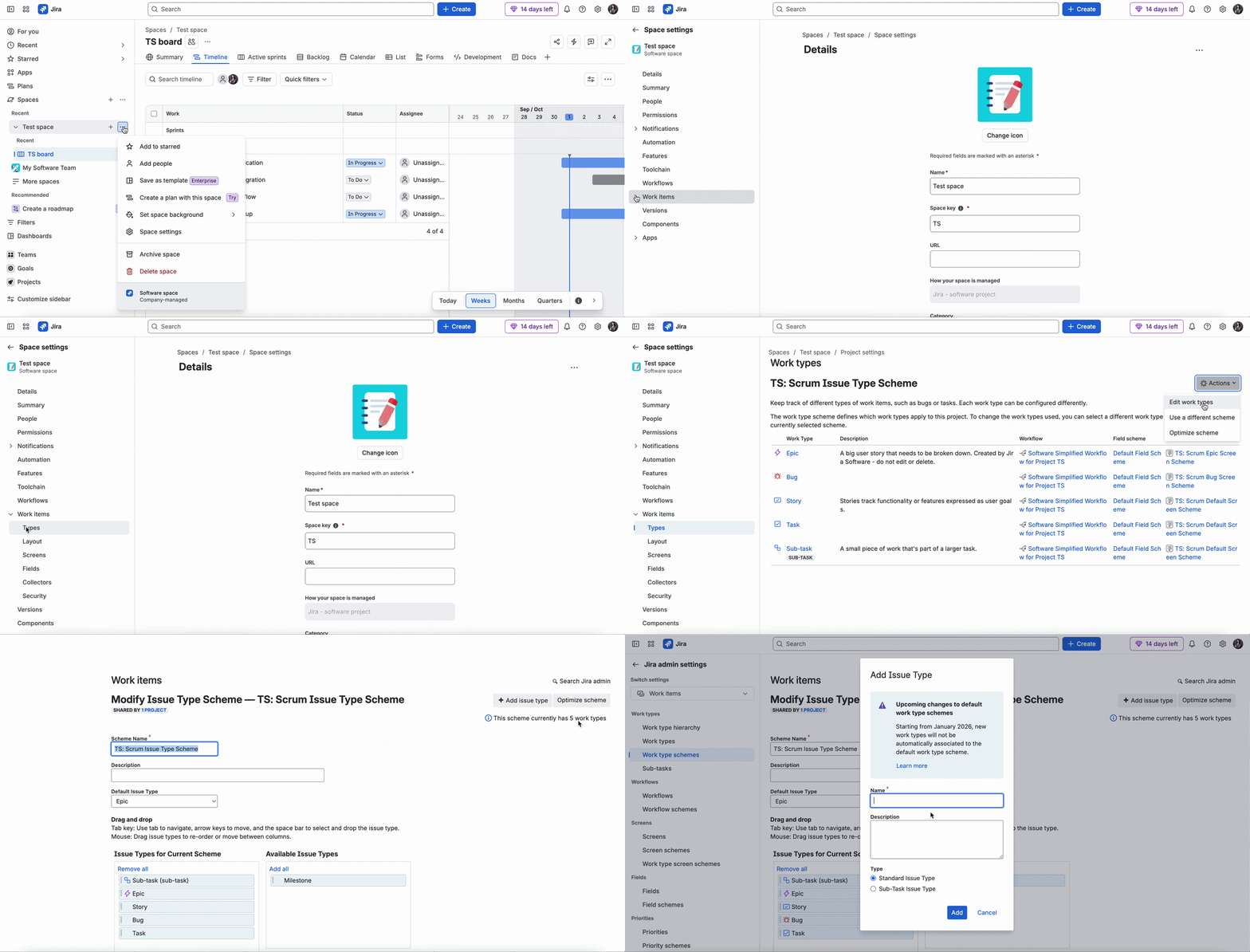
How to make it:
- Admin creates a Milestone work type with its own icon and adds it to your work type scheme.
- Set start and due date to the same day, so it reads as a point.
- Link it with is blocked by to whatever finishes first.
- Add the fields you need: milestone type, customer, contract reference.
- Report with issuetype = Milestone AND duedate <= 30d AND statusCategory != Done
Weak point: it's just a ticket, which means backlog clutter, drawing as a bar rather than a point, and someone drags it across the board every sprint.
Option 3: A due date on an epic
Any plan, no admin needed.
The point of this workaround is setting the epic's due date to the milestone date, and the end of the bar becomes your marker.
Weak point: one epic can only have one such date. If you need discovery, prototype, and QA marked inside the same epic, this may not be the most effective fix.
Option 4: A workflow status
Needs a Jira admin and a company-managed project.
Add Milestone reached as the final step in a workflow. Good for recording that a checkpoint was passed, but it’s disconnected from any kind of timeline. It will answer if you “got there,” but it’ll never help understand whether you’re “going to go there.”
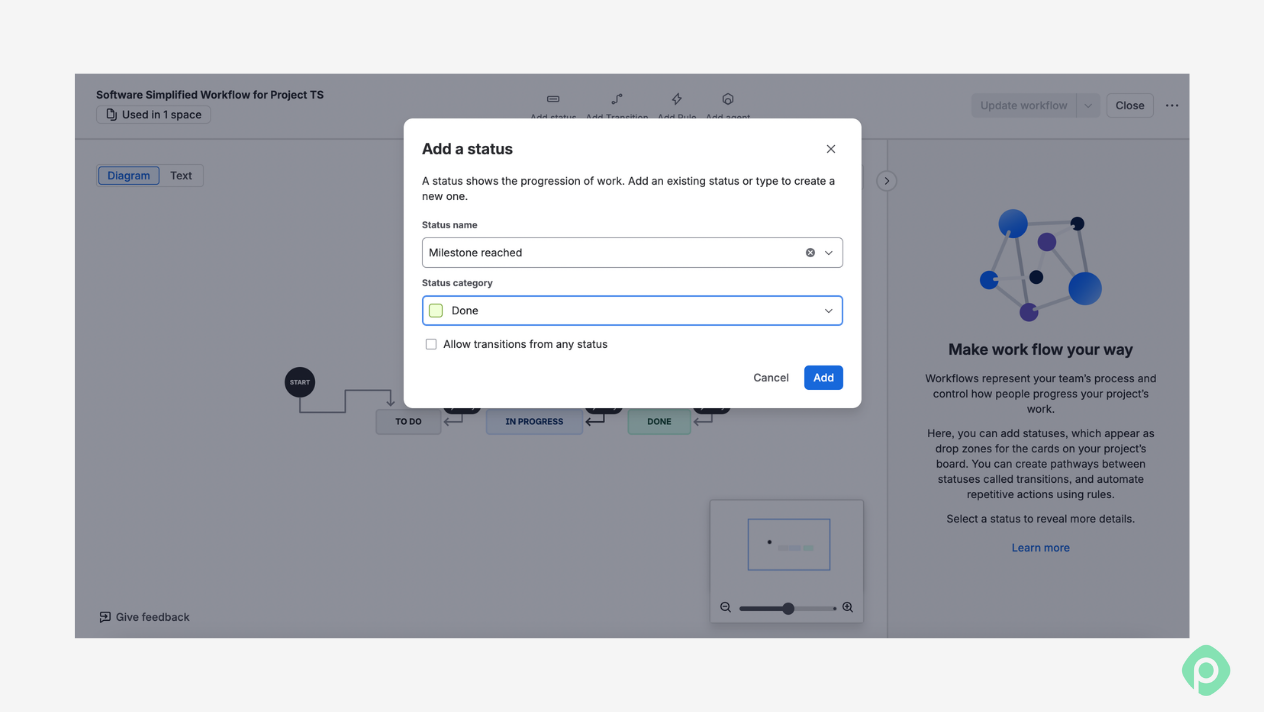
Weak point: there’s no target date, so you can record getting there but never plan toward it. It doesn’t show up on a timeline, and it belongs to one work item instead of the project. That makes it after-the-fact reporting, not a milestone.
That last row is the real problem. Project-level dates at least have a stand-in in releases, awkward as it is. Stages inside an epic have nothing, which is why teams end up creating an empty ticket per phase just to mark where each one ends.
How to create project and epic milestones in Jira with Planyway
Planyway for Jira is an all-in Jira app for cross-project management, and it’s also the one option out of the five where a milestone is actually a milestone.
Project milestones tab in Planyway
In Planyway, milestones live in a lane above your timeline, so the dates that matter stay on screen no matter how far down you scroll.
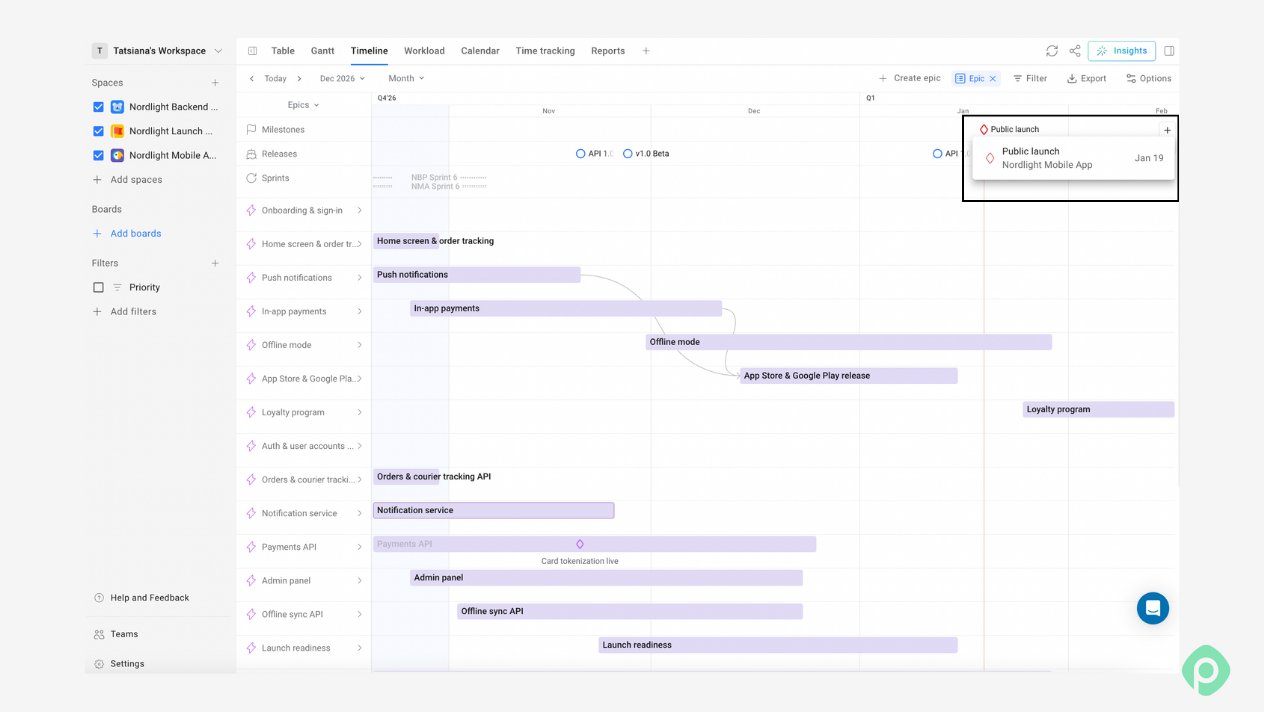
If you don't want another ticket cluttering the backlog, you can make it an internal milestone that exists only in Planyway’s milestones "tab", and Jira never hears about it.
That's the right call for any data you don't manage in Jira anyway: a conference, a client demo, a regulatory deadline. When the date is contractual and needs to live in Jira with fields and links, you can just bind the milestone to a work item instead. The roadmap can also be easily shared with stakeholders or your team via a link to a custom workspace or PDF/CSV/Excel.
Epic milestones in Planyway
Say you've got an epic that runs three months. Right now, it's one long bar with a date at the end, and nobody can tell from looking at it whether it's on track.
Epic milestones are checkpoints you drop onto that bar: code freeze, QA handoff, beta release. Right-click the epic on the timeline and add one. Each gets a name, a date, and an owner, and automatically shows up as a small marker on the bar itself.
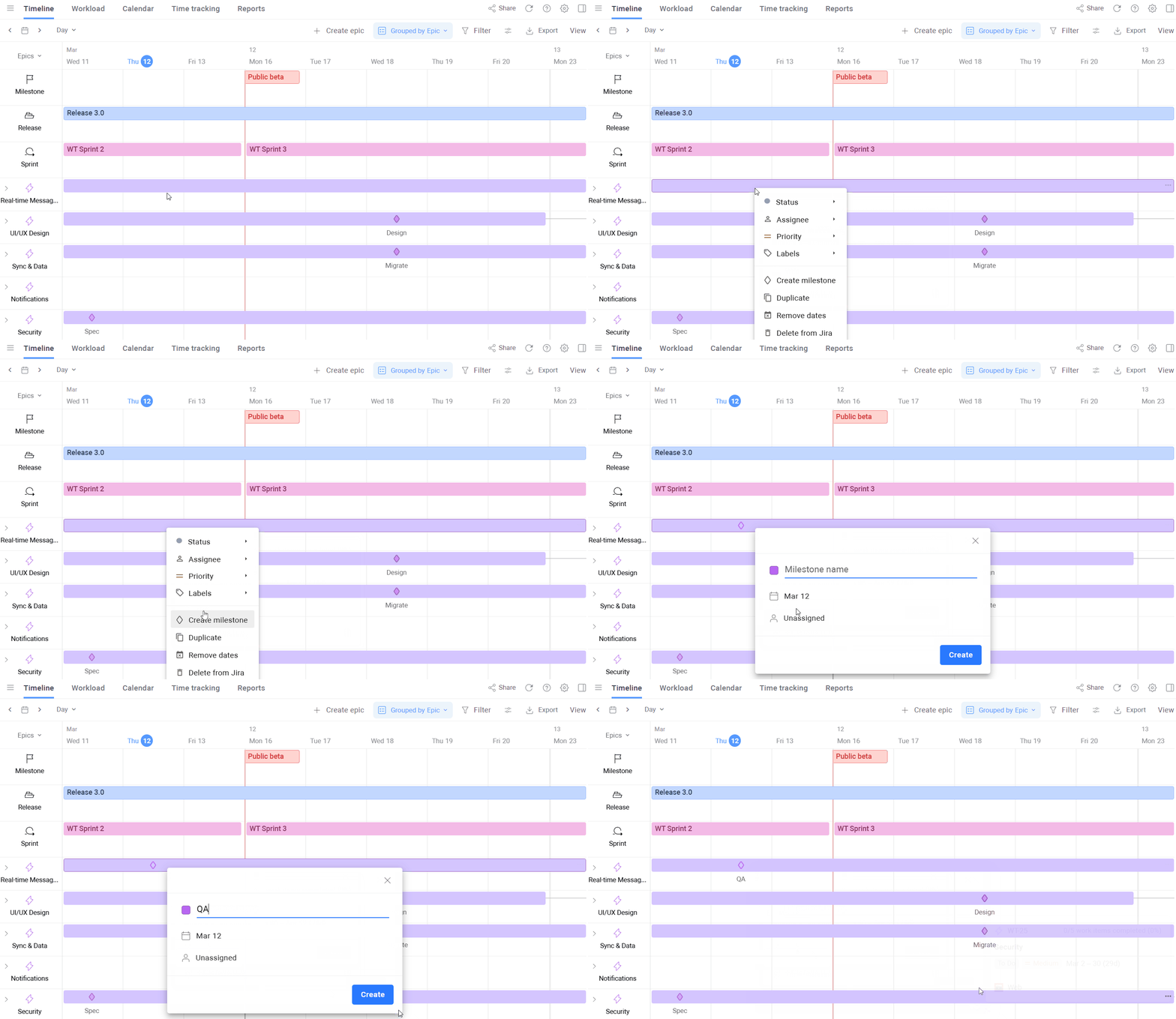
The point is that you find out early. If the code freeze marker slides past its date in week six, you know the end date is in trouble, while there's still time to do something instead of finding out in the last week, when the only option left is to just tell someone.
Milestones and capacity
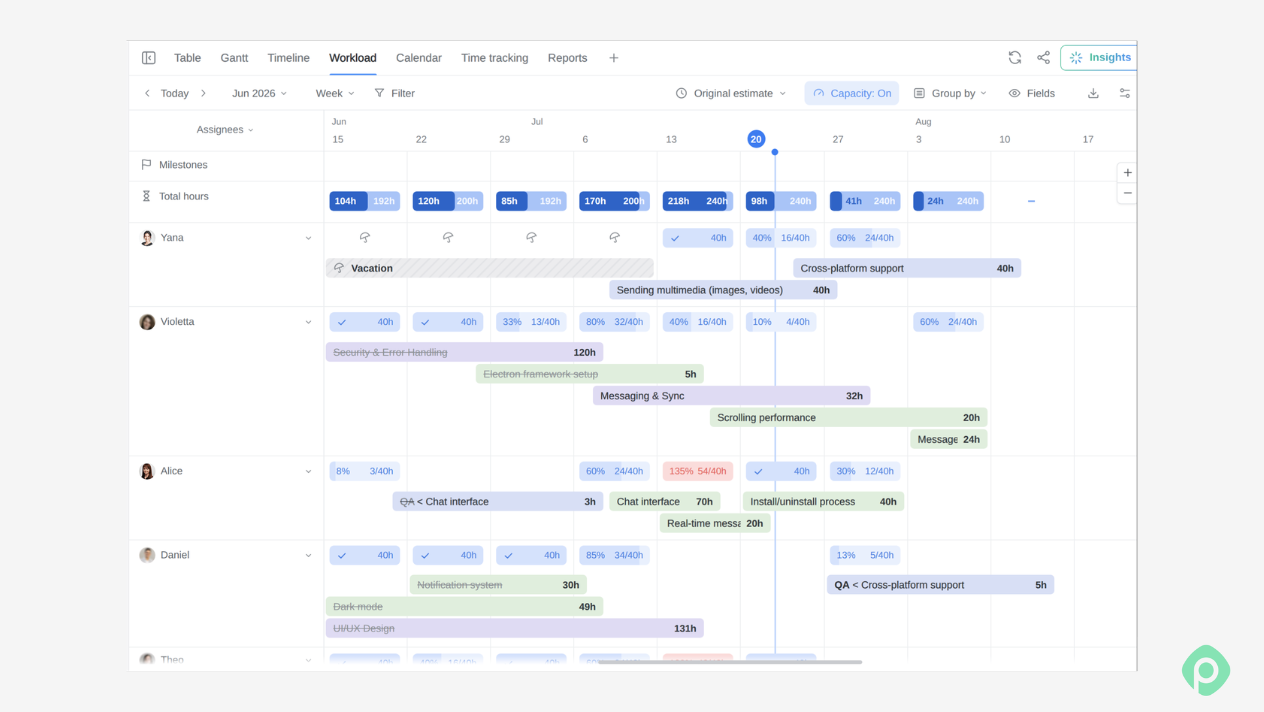
Sure, you can put a milestone on Friday. But if the person who has to get there is booked to 120% until Tuesday, they simply don’t have the hours to let Friday happen.
In Planyway, the workload heatmap sits under the same timeline, so you see availability right next to the dates. This gives you the ability to schedule things properly and configure workload in a way that contributes both to hitting those milestones and not having anyone burned out.
Best practices that keep milestones meaningful for a project plan
Milestones are most useful when they help someone understand where a project stands at a glance. Here are several pro tips that can help keep all the milestones as helpful as possible.
- Write the exit criteria before the date. "Design phase complete" is too vague. Write at least two sentences that would define what “complete” looks like in this situation. If you can’t, the milestone isn't defined well enough yet.
- Put an early warning before every gate. If your only milestones are phase exits, there’s a risk of finding out you're late on the day you were due to finish. Mark something ahead of each one: "use cases published" before "exit discovery", "last feature merged" before "code freeze".
- One named person per milestone. Someone has to check the criteria were actually met.
- Space them two to six weeks apart. If they’re spaced any closer, it’s easy to mistake them for tasks. If they’re further, nobody feels them. A six-month project usually needs eight to twelve.
- Ask for evidence. The test report, the signed document, a filter showing zero open items in that version — any deliverable would do here.
Let all the milestones help you stay on track
Jira is built around various work, such as issues and sprints, but projects are also shaped by dates that don't necessarily fit into an issue. That's why it helps to distinguish work from the dates that give that work meaning. Use milestones for significant project achievements and checkpoints, and use date markers for important events that happen outside the actual work.
With Planyway for Jira, you can bring those elements into one visual timeline: plan Jira issues, highlight key milestones, and add markers for important dates that aren't work. This gives you a clearer picture of what's happening now, what's coming next, and which dates the team should prioritize.


FAQ
Yes. Jira has roadmap and planning features, although exactly what's available depends on your Jira product and plan. Jira's timeline and planning capabilities let teams visualize issues, dates, dependencies, and releases over time.
For teams that want to combine Jira issues with timelines, dependencies, milestones, and important dates, Planyway is one option to consider. It adds visual planning capabilities to Jira while keeping your existing Jira issues and workflows at the center of the project plan.
A project timeline shows the project over time, including tasks, phases, dependencies, deadlines, and other dates. A milestone is a significant point on that timeline, usually representing an important achievement, decision, deliverable, or deadline.
Common project milestone examples include: project kickoff, requirements approved, design approved, development complete, MVP ready for testing, user acceptance testing complete, product launch, etc.
In Agile, milestones are significant checkpoints or outcomes used to track progress toward a larger goal, such as a release, launch, or major product increment. They don't have to correspond to a specific Scrum event or sprint.